If you need help registering or logging into your Forma Admin for the first time, follow How do I access Forma Admin?
Forma Admin → File Manager > Production Files
The 'Production Files' tab under File Manager displays all files Forma has received and processed, allowing you to monitor uploads made through automatic feeds or Forma Admin. You can review the following file types here, depending on your benefits offerings: Employer-sponsored demographics files (including HRA), and pre-tax demographics, elections, and contributions files.
On the summary table, you can review the following:
- File information:
- name
- product (employer-sponsored, pre-tax)
- date processed
- file type (demographics, elections, contributions)
- number of records
- Number of Successful Records
- Number of Warnings
- Number of Errors
- Review Note: Only for Pre-tax files; notes indicate whether errors have been addressed by Forma or your team. See Forma Admin: File Manager Review Issues (Pre-tax) for details.
You can also download a copy of the original file by clicking the down arrow next to the file name.
What does each number mean?
Successful
If a row has no errors or warnings, it will be counted as 1 successful record and shown in the Successful column. If the number of successes matches the total number of records, it means the file has been processed successfully with no further action needed.
Warnings
Rows with warnings are counted as 1 warning record and shown in the Warning column. Although these rows are processed, they contain updates the system is uncertain about and require your attention. Refer to the following articles for possible warnings.
For employer-sponsored files, a warning typically indicates missing email information. To learn more, see Employer-sponsored/HRA demographics file errors.
Errors
Rows with errors are counted as 1 error record and shown in the Error column.
- Pre-tax Files: Check “Review Issues” to address errors and reprocess with the correct records promptly.
- Employer-sponsored Files: If errors are found, you will see “Issues Found” instead of specific error details. Forma does not display these details in File Manager, but our customer operations team will contact you to assist with resolving the issue.
Blank
If no number appears, it may mean the file is empty, not processed, or still in processing. You might see a “File Failed”, “Issues Found”, or “Processing” message in such cases.
Review Issues
When there are pre-tax file issues, you will see a “Review Issues" link. The review feature is available only for pre-tax files. If you see “Issues Found” for employer-sponsored files, contact our customer operations team at support@joinforma.com for help. For more information, refer to this article.
File Review Status
The “File Review Status” applies only to Pre-tax files. It tracks whether file errors have been addressed, either by Forma or your team. For more details, see Forma Admin: File Manager Review Issues.
Filter
Select "Filter" to refine your search. You'll find the following options:
-
File Type:
- Demographics: Includes both pre-tax and employer-sponsored demographics files.
- Elections: Pre-tax elections files.
- Contributions: Pre-tax contributions files.
-
File review status: applicable to pre-tax files only.
- Reviewed
- Unreviewed
- Date Range: Filter by "first uploaded on" and "last uploaded on"
If you only have Forma employer-sponsored programs, you will only have the date filter as "Demographics" is the sole file type available.
Upload a Production File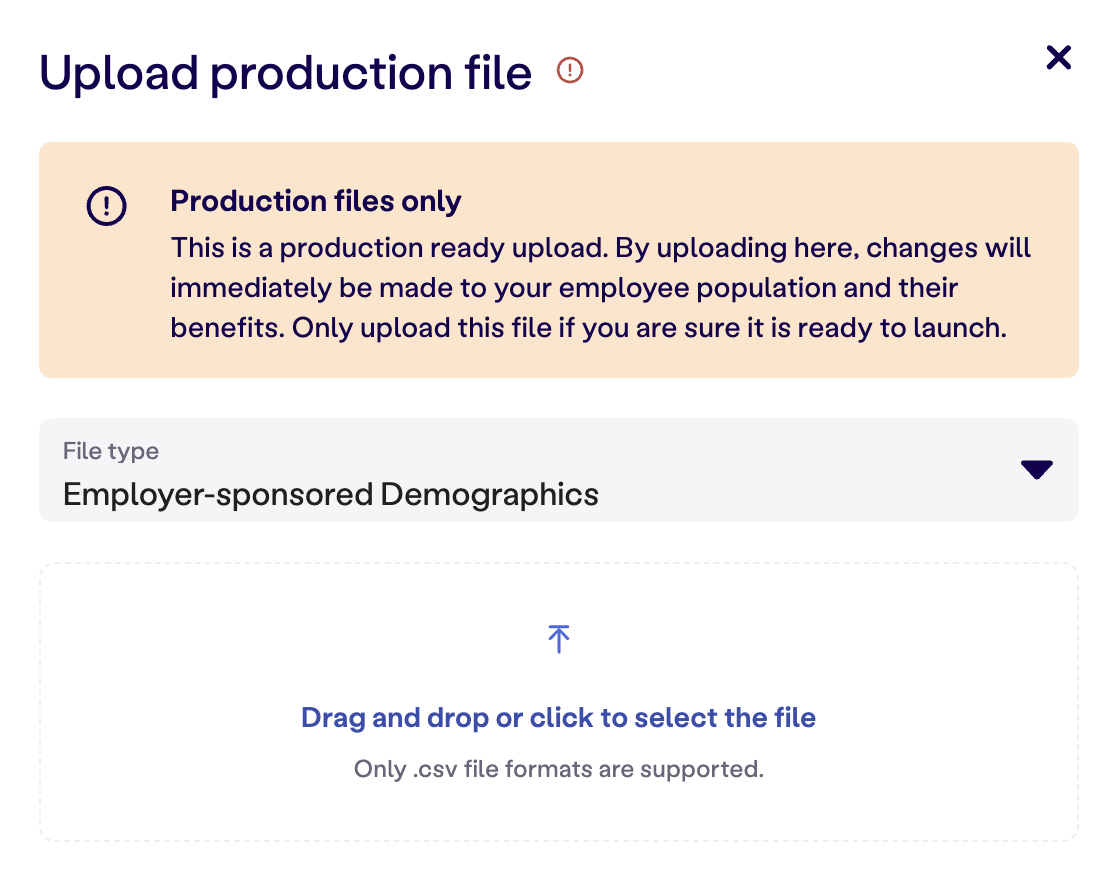
In File Manager > Production Files, you can manually upload a file for processing. You may need to do this if:
- You do not have automatic file feeds to Forma.
- You need to correct an error or warning from a previous file.
- You need to add, update, or terminate employees or their pre-tax benefits or contributions on a one-time basis to avoid delays.
Important Notes:
- Employer-sponsored demographics files must include all active employees. For updates involving only a few employees, use the Employees section within Forma Admin instead.
- File processing typically takes about an hour. Return to the File Manager page to check the results.
- You can also use an SFTP tool for file uploads.